


30/90/365 Document Version Control for Teams: Operations First
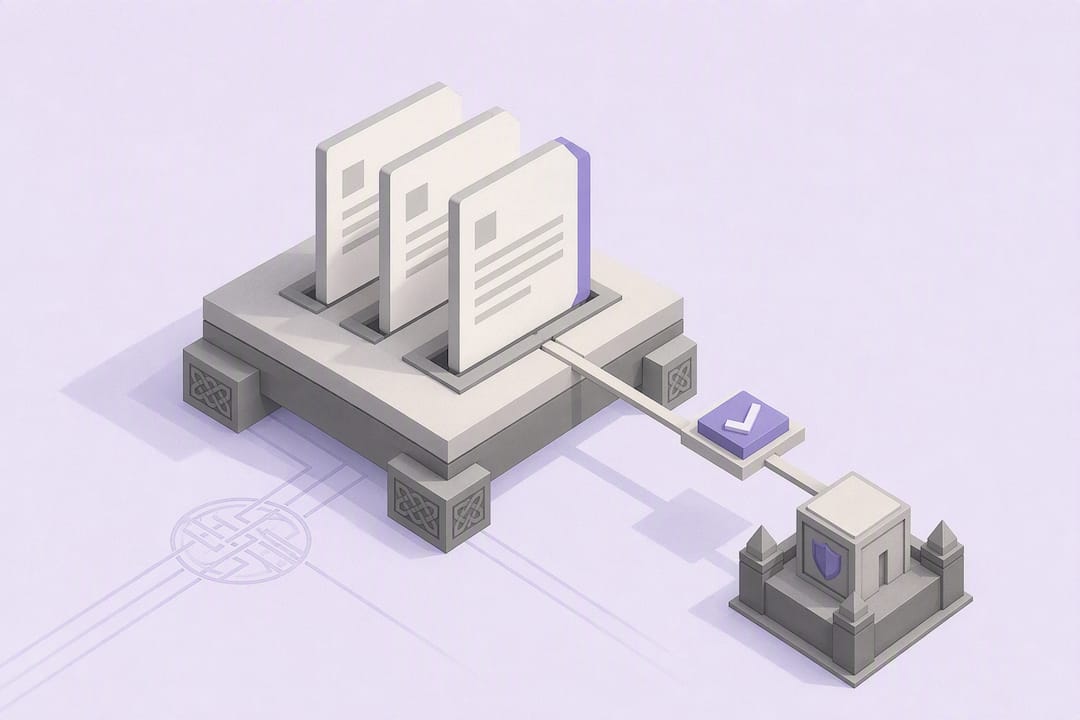
Document version control is the systematic process of tracking every change made to a file, including who made it and when. The recommended approach is automated versioning inside one shared system with access controls and a retention policy, not manual file renaming. That combination gives teams a single source of truth, a defensible audit trail, and fewer overwritten drafts.
TL;DR:
Automated cloud versioning should be enabled in a single shared storage system to ensure continuous, granular change tracking for all critical documents.
Retain version history for at least one year to support compliance and legal audits, as many consumer tools only preserve updates for roughly 30 days, which is often insufficient.
Assign a document owner, define clear access and retention policies, and implement a finalization process to prevent further edits on approved files.
Rely on system features like automatic version history and check-in/check-out controls instead of manual naming, reducing the risk of gaps in the audit trail.
Automate attribution and archiving to preserve a complete history and move approved documents into read-only archives to safeguard against silent alterations.
PROJECT-JTH
Bring Clarity to Critical Operations
PROJECT-JTH helps teams address operational challenges through technical advisory services, leadership training, and practical communication strategies.
Table of Contents
What Does Document Version Control Actually Mean?
Document version control (also called document revision control or file versioning) is the discipline of recording every substantive change to a file as a distinct, retrievable entry rather than letting each edit silently replace the last. Every recognized system captures the same core metadata for each change.
Timestamp: when the edit occurred
User attribution: who made the change, tied to an authenticated account
Change description or diff: what actually changed between versions
This is a narrower concept than a backup. A backup is a periodic snapshot of an entire system or drive, designed for disaster recovery. Version control is granular and continuous, designed for accountability. Document version control works best as an automated background process rather than something staff must remember to do manually, according to Proton’s guidance for businesses. A backup restores everything; version control tells you exactly what changed inside one file and who was responsible.
Why Does Version Control Matter for Teams and Audits?
Two people editing the same contract in parallel copies is one of the most common ways teams lose work. One person’s edits vanish the moment the other saves over the shared file, and nobody notices until a client asks about a clause that quietly disappeared. Reliable version history eliminates the guesswork of “whose copy is current.”
The audit case is just as strong. When a dispute arises over a contract term, a safety procedure, or a compliance filing, the only real defense is proof of what the document said on a given date and who approved it. Harvard’s Biomedical Data Management program treats version control as core to research integrity, not just convenience, because reproducing an analysis or defending a finding depends on knowing exactly what changed and when.
Statistic to watch: consumer cloud tools often cap version history retention at roughly 30 days, a window Proton’s guidance flags as frequently insufficient for business audits or legal discovery that reaches back further than a month.
How Do You Set Up Document Version Control?
Getting version control running does not require a large project. It requires four decisions, made in order and enforced consistently.
Pick one canonical storage location and migrate active files into it. Every document that matters to operations, compliance, or client work should live in exactly one shared system, not scattered across desktops and email attachments.
Turn on automatic versioning and require authenticated logins for edits. Automatic versioning removes the dependency on someone remembering to save a new copy; authentication ties every change to a real identity instead of an anonymous edit.
Assign a document owner and write down retention and access rules. Someone needs to be responsible for each document category, and access should be limited to the people who genuinely need it.
Build a simple finalization step for approved documents. Once a version is approved, mark it clearly and move it (or lock it) so nobody keeps editing what should be settled.
Pro Tip: Start with your five highest-risk document types, contracts, safety procedures, and financial records, rather than trying to convert every file in the organization at once. A narrow, well-executed pilot builds the habit faster than a company-wide mandate nobody follows.
Which Version Control Method Fits Your Workflow?
Not every document needs the same level of rigor, but manual naming rarely survives contact with more than two people.
Manual naming (“Contract_v2_FINAL_John_edits.docx”) depends entirely on individual discipline. Proton’s research calls this one of the most common failure points in document management, since it creates gaps in the audit trail the moment someone forgets a step or renames inconsistently.
Cloud auto-versioning logs every save automatically, with no naming required. This is the default most teams should use for day-to-day working documents.
Check-in/check-out locks a file to one editor at a time, preventing simultaneous overwrites. It suits formal review cycles where a document passes through several approvers in sequence.
Distributed version control (Git-style) tracks line-by-line diffs and branching history. It fits text-heavy technical artifacts, like policy documentation written in plain text or Markdown, better than binary office files.
Cloud platforms with built-in version history features that let users compare revisions and roll back changes remove most of the manual checkpoint burden entirely, according to Adobe’s documentation on the topic.
How Do You Use Version History in Everyday Tools?
Most teams already own tools that handle version control, they just haven’t turned the features on or trained staff to use them.
Microsoft 365 (Word, SharePoint, OneDrive): Files stored in SharePoint or OneDrive keep automatic version history; open a document’s version pane to view or restore an earlier draft. Microsoft’s own guidance covers how to view and restore versions in Word directly.
Google Docs: Version history is automatic and accessible under the file menu; name a version explicitly once it’s approved so nobody confuses a draft with the final.
Consumer sync services (personal Dropbox, iCloud, generic drive-sync tools): retention windows are often short and vary by plan tier, so treat these as convenient for casual collaboration, not for compliance-grade records.
Recommendation: keep the finalized, approved copy in the same governed system used for versioning, not exported to a personal drive or emailed as an attachment.
Microsoft recommends planning versioning, content approval, and check-in/check-out controls together rather than treating them as separate settings, since content approval without version retention leaves a gap in the record.
Do Naming Conventions Still Matter?
Suffixes like “FINAL,” “v2,” or “latest” fail the moment a third person joins the thread, because there is no shared agreement on what counts as final. Two people can both create a file called “FINAL” on the same day.
Reserve manual naming for exported copies leaving the system, using a minimal pattern: author initials, ISO date (YYYY-MM-DD), and purpose, such as “JH_2026-03-14_client-proposal.pdf.”
Manual naming still works fine for one-off exports sent to external parties who don’t have access to your version history.
Inside your working system, let automatic versioning handle everything; don’t layer manual suffixes on top of a tool that’s already tracking versions for you.
How Long Should You Keep Version History for Audits?
A 30-day retention window, the default on many consumer-grade tools, rarely covers the timeline a serious audit or legal dispute requires. Proton’s guidance for businesses points out that meaningful compliance and dispute resolution often needs history retained for months or years, not weeks.
Three categories of activity deserve logging: edits (what changed and by whom), access or exposure events (who viewed or downloaded a file), and approvals (who signed off and when). For infrastructure and configuration files sitting outside a document management platform, kernel-level tools like Linux’s auditd framework capture file access and modification events that application-level version control never sees.
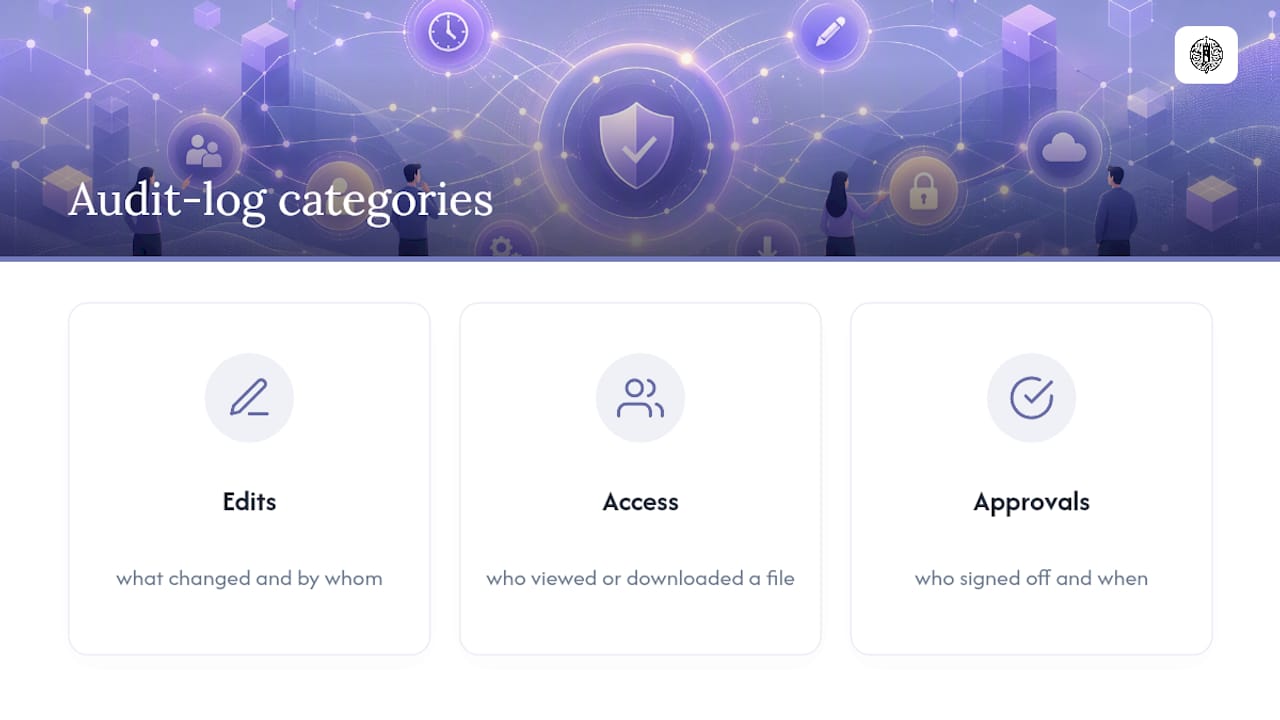
Retention benchmark: treat one year as a practical floor for business-critical document categories, and assign a named policy owner responsible for reviewing and adjusting that window as regulatory requirements change.
How Do You Archive and Restore Old Versions Safely?
Once a document is approved, move it into a read-only archive so no further edits can alter the record silently.
Restore from an archived version by creating a new working copy rather than overwriting the current file, keeping the full history intact.
Index archival snapshots with searchable metadata (date, owner, document type) so retrieval doesn’t depend on someone remembering a folder path.
Never delete superseded versions outright; demoting them to read-only preserves the chain of custody an audit might need later.
What Should You Automate First?
Attribution and version logging should never depend on a human remembering a manual step; automate both from day one. Manual checkpoints, like asking someone to rename a file before sending it, are exactly the point where audit trails break down.
Integrate versioning with access control and workflow automation so that permission changes and approval steps happen inside the same system tracking revisions, rather than as a side process in email. Tools built around integrated history features, like the version tracking AmmarAI describes for collaborative work, show how automation can preserve every change as an immutable record instead of relying on someone to save correctly.

Pro Tip: If you only automate one thing this quarter, automate access revocation tied to role changes. Stale permissions are the most common way outdated document versions resurface and get mistaken for current ones.
What Does a 30/90/365-Day Rollout Look Like?
A phased rollout keeps the project realistic instead of stalling on an all-at-once mandate.
Days 1 to 30: Write the policy, name a document owner for each major category, and pick a small pilot group to test the workflow.
Days 31 to 90: Migrate active working files into the canonical system, turn on automatic versioning, and train the wider team on finalization steps.
Days 91 to 365: Finalize retention rules by document category, test archive restoration at least once, and review what broke so the policy improves.
How Does PROJECT-JTH Approach Version Control in Practice?
Some companies build document control policy, tooling, and training directly into their technical advisory engagements, treating version history as a security and operations issue, not paperwork. In mission-critical environments, that means pairing access controls with clear ownership so production records, contracts, and safety documentation stay traceable under pressure. Certain tools reflect this approach by keeping production records and contracts inside one governed system rather than scattered exports.
An Operational Leader’s Take on Version Control
Version control policy fails or succeeds based on whether leadership enforces it consistently, not on which tool gets purchased. When a document’s history is clear, incidents get resolved faster because nobody wastes time arguing over which copy was current.
— Jesse Hart
Get Help Standing Up Version Control That Actually Holds
Some advisory services are designed for teams who want document control built correctly the first time, not bolted on after a dispute exposes the gaps. Some advisory engagements pair the technical setup (access controls, retention rules, audit logging) with leadership training that helps keep staff following policy under real deadline pressure.
Some companies provide tools that put this philosophy into practice, managing production records and contracts inside one governed system, so version history and access control live in the same place instead of across scattered files. If your team is ready to close the gaps between policy and daily habit, visit PROJECT-JTH to discuss an advisory engagement or see how Project Relay fits your document workflow.
Sources
For implementation depth, see Microsoft’s SharePoint versioning and check-out planning guide and SUSE’s Linux audit framework documentation.
Plan document versioning, content approval, and check-out controls … | Microsoft Learn
Understanding Linux audit | Security and Hardening Guide | SLES 15 SP7
FAQ
What Is Version Control in Documents?
Document version control is the practice of tracking every change made to a file, capturing who made it, when, and what changed, so teams always know which copy is current and how it got there.
What Are the Three Common Types of Version Control?
The three approaches teams use most often are manual naming (renaming files by hand), automated cloud versioning (built into platforms like SharePoint or Google Docs), and check-in/check-out systems that lock a file to one editor during review.
What Is an Example of Document Control?
A signed contract that moves through drafting, legal review, and client approval, with each stage automatically logged and the final approved copy locked as read-only, is a practical example of document control in action.
How Do You Manage Different Versions of a Document?
Store the file in one shared, access-controlled system with automatic versioning turned on, assign an owner responsible for approvals, and archive the finalized version as read-only once it’s approved.
